Create a party
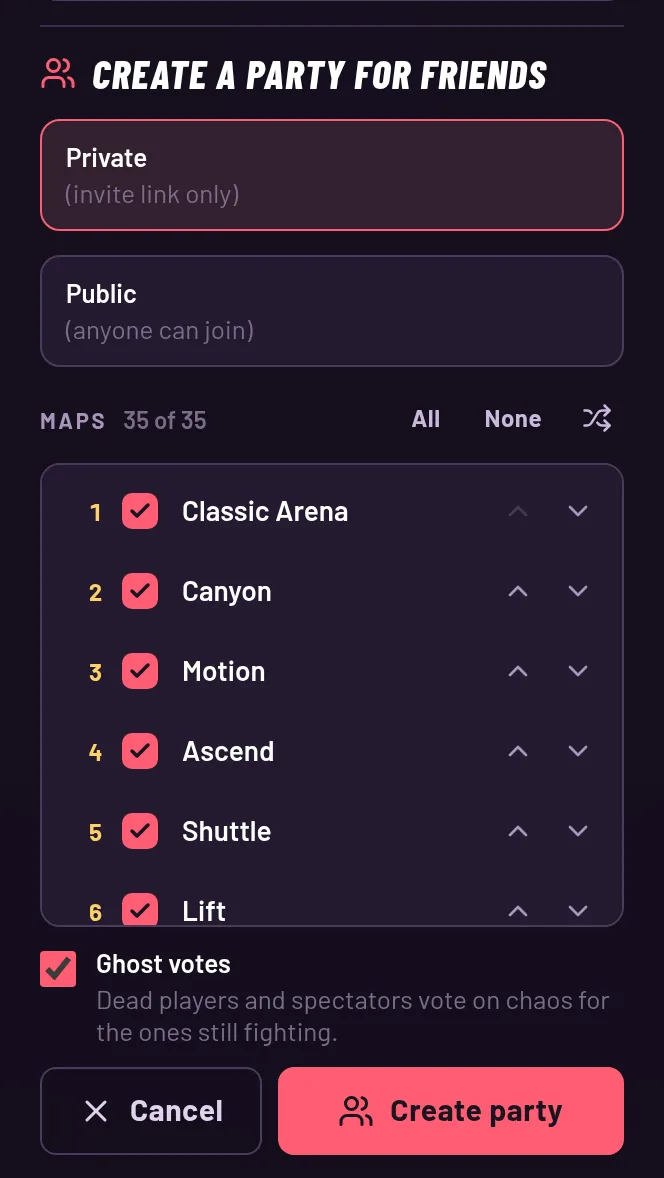
Open the setup on the join screen, pick who can join, which maps and whether ghosts vote.
Open the setup
On the join screen, press "Create a party for friends". The setup opens and the Play button hides until you press Cancel or "Create party". You don't see this button if you arrived through a friend's link.
Private or public
Private means invite link only, and it is the default. A private party never shows up for anyone pressing Play.
Public means anyone can join. Players pressing Play can land in a public party with space, along with your friends. A public party doesn't get automatic bots. The invite link works for both kinds.
Pick the maps
The Maps list has one row per map, all ticked to begin with (there are 35 of them). Untick the ones you don't want, use All or None, and move a map up or down to change when it is played. The order on the screen is the order the match follows, and each ticked map shows its turn number.
If you tick nothing, the party plays every map. The first map in your list is the warm-up: everyone fights with fists only until the first kill that counts, so put one you like to warm up on first.
Ghost votes
"Ghost votes" is ticked by default. Players who die and spectators vote on a twist for the ones still fighting. Untick it and those votes are off, and so are the cards the Chaos Director plays when nobody is dying.
See the Chaos Director guide for how the votes work.
After you create it
You become the host and drop straight into the room. There is no lobby screen to wait in. Open the pause menu (Esc, or the Pause button on a phone) to copy your invite link, add bots and see who is waiting.