Export a video
Turn any recording into a video for YouTube, Reels, TikTok or Shorts, with the music and the right shape already set.
How to start
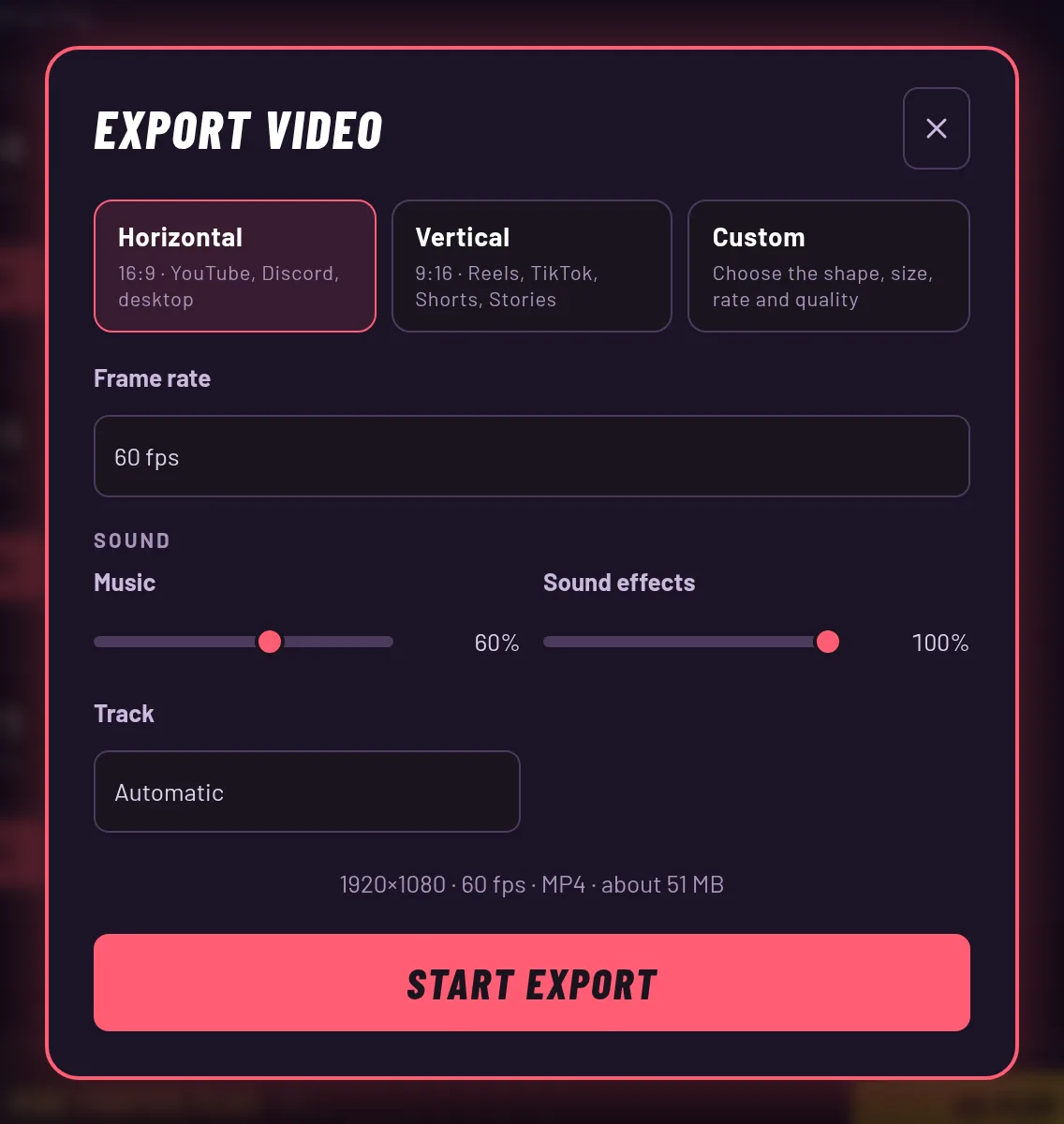
You need to have played in the match. Press Export video on a Recordings row, or on the choice you get after a Play of the Game. Pick your settings and press Start export.
The video is built in your browser on the game page. Leave that page open and don't reload it until it says your video is ready. Then you can download it, or share it straight away.
Pick a preset
Horizontal is 16:9, for YouTube, Discord and the desktop. Vertical is 9:16, for Reels, TikTok, Shorts and Stories. Both default to 1,080p at 60 frames per second and 10 Mbps.
Custom lets you choose the shape, size, frame rate and quality yourself. The dialog remembers your last choices in this browser.
How the video is framed
A tall or square video can't fit the whole arena width, so you choose how it is framed. Follow the action zooms in on the fighters and follows them, and it is the default. Whole arena holds one steady shot of the map.
In a 16:9 video there is no choice, because the whole arena already fits.
Music and sound
The video has the match's sound effects and a music track. Music defaults to 60 and sound effects to 100, and you can change either one.
Track set to Automatic picks one of the 7 battle loops from the clip, so the same clip always gets the same song. Or pick a track yourself. Your volume settings in the game are not used for exports.
The file you get
The file name follows the room and the date. It is saved to your downloads, and on devices with a share sheet you can also press Share video.
Every video comes with the logo and vibefighter.io on the game footage and a 3 second end card that says Play free now. A Play of the Game starts with its intro card. You can't turn these off.